mishmesh
The on-device UI for MeshCore.
Messaging, contacts, repeater admin and radio config - all on the device's own screen, driven by the buttons. The phone app still works; you just don't need it.
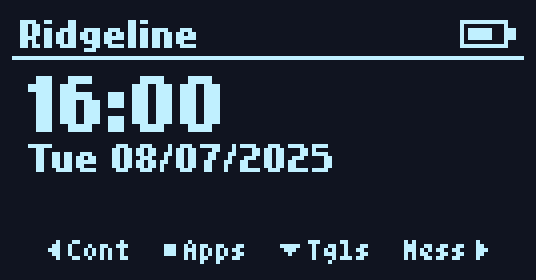
MeshCore is a LoRa mesh: messages hop from node to node with no towers or internet. Normally you operate it through the phone companion app over Bluetooth.
mishmesh is an alternative companion firmware that puts that interface on the device itself. Messaging, contacts, repeater administration, radio settings, a background clock - all on the device's own screen, driven by the buttons.
It's a drop-in replacement for the stock MeshCore companion UI - the phone app still connects over Bluetooth.
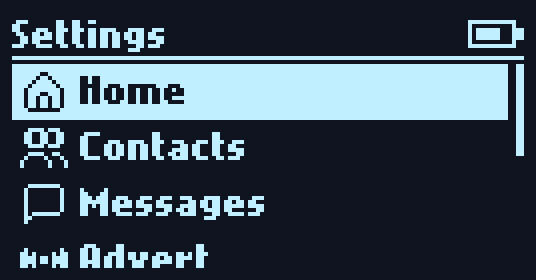
Real captures, rendered pixel-for-pixel from the firmware.
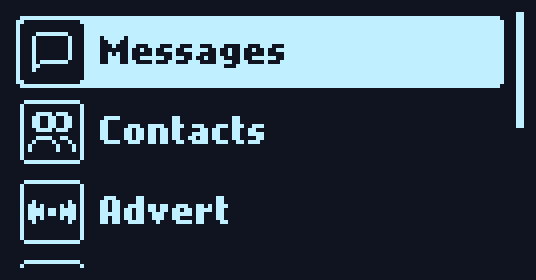
every screen, one grid
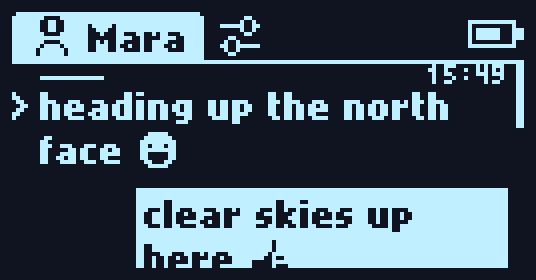
bubbles, status, emoji
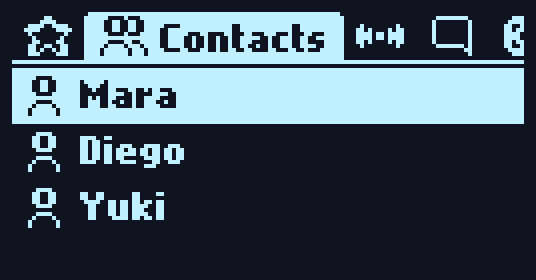
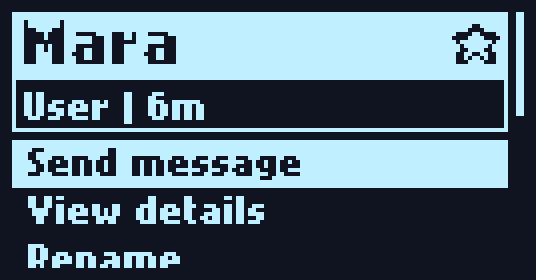
sorted by kind
telemetry, path, ping
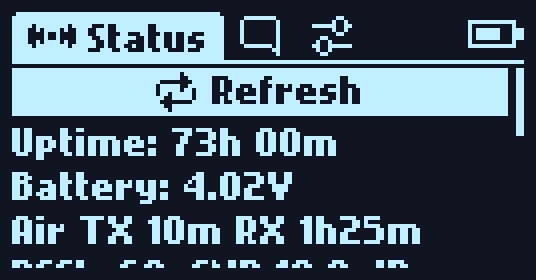
live stats, over the air
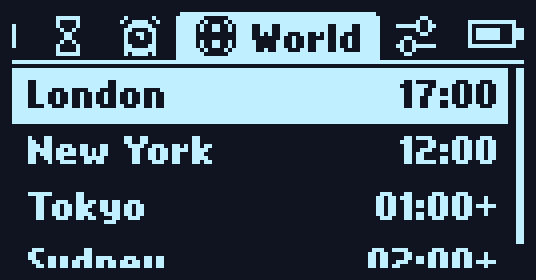
timers that run in the background
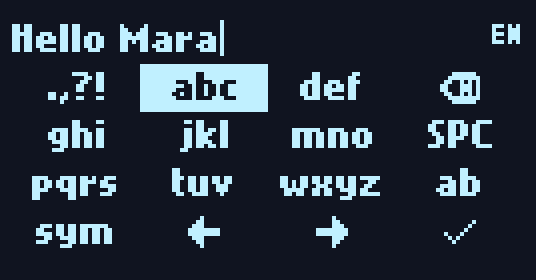
multi-tap text, symbols, emoji, 18 layouts
radio, time, experimental
mishmesh runs on the Seeed Wio Tracker L1 / L1 Pro (nRF52840; they're the same board, 128x64 OLED) and the Wio Tracker L1 E-Ink (2.13", 250x122). Two ways in.
Grab the firmware
Download the latest .uf2 from Releases. Pick WioTrackerL1_ for the OLED board or WioTrackerL1Eink_ for the e-ink one, then _ble_ for the Bluetooth companion build or _usb_ for serial.
Enter the bootloader
Double-tap the reset button. A USB drive named ...BOOT appears - that's the nRF52 bootloader.
Drop it on
Copy the .uf2 onto the BOOT drive. The board reboots into mishmesh. First boot runs a short setup wizard: name, region, time.
Build it
From a PlatformIO checkout of the repo. FIRMWARE_VERSION (the MeshCore base) is optional for mishmesh builds.
# optional: pin the meshcore base it reports
export FIRMWARE_VERSION=v1.17.1
sh build.sh build-firmware WioTrackerL1_companion_radio_usb_mishmeshOn the e-ink board swap WioTrackerL1_ for WioTrackerL1Eink_.
Flash it
Upload over USB - nrfutil does a 1200-baud touch to drop the board into DFU, no manual reset needed. Swap usb for ble for the Bluetooth build, and WioTrackerL1_ for WioTrackerL1Eink_ on the e-ink board.
pio run -e WioTrackerL1_companion_radio_usb_mishmesh -t upload